300x250 AD TOP

Showing posts with label Security. Show all posts

Sunday, 4 March 2012

Tagged under:

How to create Strong passwords : Password rules


Strong passwords: How to create and use them

clip_image001Your passwords are the keys you use to access personal information that you've stored on your computer and in your online accounts.
If criminals or other malicious users steal this information, they can use your name to open new credit card accounts, apply for a mortgage, or pose as you in online transactions. In many cases you would not notice these attacks until it was too late.
Fortunately, it is not hard to create strong passwords and keep them well protected.

What makes a strong password

To an attacker, a strong password should appear to be a random string of characters. The following criteria can help your passwords do so:
Make it lengthy. Each character that you add to your password increases the protection that it provides many times over. Your passwords should be 8 or more characters in length; 14 characters or longer is ideal.
Many systems also support use of the space bar in passwords, so you can create a phrase made of many words (a "pass phrase"). A pass phrase is often easier to remember than a simple password, as well as longer and harder to guess.
Combine letters, numbers, and symbols. The greater variety of characters that you have in your password, the harder it is to guess. Other important specifics include:
•The fewer types of characters in your password, the longer it must be. A 15-character password composed only of random letters and numbers is about 33,000 times stronger than an 8-character password composed of characters from the entire keyboard. If you cannot create a password that contains symbols, you need to make it considerably longer to get the same degree of protection. An ideal password combines both length and different types of symbols.
•Use the entire keyboard, not just the most common characters. Symbols typed by holding down the "Shift" key and typing a number are very common in passwords. Your password will be much stronger if you choose from all the symbols on the keyboard, including punctuation marks not on the upper row of the keyboard, and any symbols unique to your language.
Use words and phrases that are easy for you to remember, but difficult for others to guess. The easiest way to remember your passwords and pass phrases is to write them down. Contrary to popular belief, there is nothing wrong with writing passwords down, but they need to be adequately protected in order to remain secure and effective.
In general, passwords written on a piece of paper are more difficult to compromise across the Internet than a password manager, Web site, or other software-based storage tool, such as password managers.
Create a strong, memorable password in 6 steps
Use these steps to develop a strong password:
1.Think of a sentence that you can remember. This will be the basis of your strong password or pass phrase. Use a memorable sentence, such as "My son Aiden is three years old."
2.Check if the computer or online system supports the pass phrase directly. If you can use a pass phrase (with spaces between characters) on your computer or online system, do so.
3.If the computer or online system does not support pass phrases, convert it to a password. Take the first letter of each word of the sentence that you've created to create a new, nonsensical word. Using the example above, you'd get: "msaityo".
4.Add complexity by mixing uppercase and lowercase letters and numbers. It is valuable to use some letter swapping or misspellings as well. For instance, in the pass phrase above, consider misspelling Aiden's name, or substituting the word "three" for the number 3. There are many possible substitutions, and the longer the sentence, the more complex your password can be. Your pass phrase might become "My SoN Ayd3N is 3 yeeRs old." If the computer or online system will not support a pass phrase, use the same technique on the shorter password. This might yield a password like "MsAy3yo".
5.Finally, substitute some special characters. You can use symbols that look like letters, combine words (remove spaces) and other ways to make the password more complex. Using these tricks, we create a pass phrase of "MySoN 8N i$ 3 yeeR$ old" or a password (using the first letter of each word) "M$8ni3y0".
6.Test your new password with Password Checker Password Checker is a non-recording feature on this Web site that helps determine your password's strength as you type.
Password strategies to avoid
Some common methods used to create passwords are easy to guess by criminals. To avoid weak, easy-to-guess passwords:
•Avoid sequences or repeated characters. "12345678," "222222," "abcdefg," or adjacent letters on your keyboard do not help make secure passwords.
•Avoid using only look-alike substitutions of numbers or symbols. Criminals and other malicious users who know enough to try and crack your password will not be fooled by common look-alike replacements, such as to replace an 'i' with a '1' or an 'a' with '@' as in "M1cr0$0ft" or "P@ssw0rd". But these substitutions can be effective when combined with other measures, such as length, misspellings, or variations in case, to improve the strength of your password.
•Avoid your login name. Any part of your name, birthday, social security number, or similar information for your loved ones constitutes a bad password choice. This is one of the first things criminals will try.
•Avoid dictionary words in any language. Criminals use sophisticated tools that can rapidly guess passwords that are based on words in multiple dictionaries, including words spelled backwards, common misspellings, and substitutions. This includes all sorts of profanity and any word you would not say in front of your children.
•Use more than one password everywhere. If any one of the computers or online systems using this password is compromised, all of your other information protected by that password should be considered compromised as well. It is critical to use different passwords for different systems.
•Avoid using online storage. If malicious users find these passwords stored online or on a networked computer, they have access to all your information.
The "blank password" option
A blank password (no password at all) on your account is more secure than a weak password such as "1234". Criminals can easily guess a simplistic password, but on computers using Windows XP, an account without a password cannot be accessed remotely by means such as a network or the Internet. (This option is not available for Microsoft Windows 2000, Windows Me, or earlier versions) You can choose to use a blank password on your computer account if these criteria are met:
•You only have one computer or you have several computers but you do not need to access information on one computer from another one
•The computer is physically secure (you trust everyone who has physical access to the computer)
The use of a blank password is not always a good idea. For example, a laptop computer that you take with you is probably not physically secure, so on those you should have a strong password.
How to access and change your passwords
Online accounts
Web sites have a variety of policies that govern how you can access your account and change your password. Look for a link (such as "my account") somewhere on the site's home page that goes to a special area of the site that allows password and account management.
Computer passwords
The Help files for your computer operating system will usually provide information about how to create, modify, and access password-protected user accounts, as well as how to require password protection upon startup of your computer. You can also try to find this information online at the software manufacturer's Web site. For example, if you use Microsoft Windows XP, online help can show you how to manage passwords, change passwords, and more.
Keep your passwords secret
Treat your passwords and pass phrases with as much care as the information that they protect.
•Don't reveal them to others. Keep your passwords hidden from friends or family members (especially children) who could pass them on to other less trustworthy individuals. Passwords that you need to share with others, such as the password to your online banking account that you might share with your spouse, are the only exceptions.
•Protect any recorded passwords. Be careful where you store the passwords that you record or write down. Do not leave these records of your passwords anywhere that you would not leave the information that they protect.
•Never provide your password over e-mail or based on an e-mail request. Any e-mail that requests your password or requests that you to go to a Web site to verify your password is almost certainly a fraud. This includes requests from a trusted company or individual. E-mail can be intercepted in transit, and e-mail that requests information might not be from the sender it claims. Internet "phishing" scams use fraudulent e-mail messages to entice you into revealing your user names and passwords, steal your identity, and more. Learn more about phishing scams and how to deal with online fraud.
•Change your passwords regularly. This can help keep criminals and other malicious users unaware. The strength of your password will help keep it good for a longer time. A password that is shorter than 8 characters should be considered only good for a week or so, while a password that is 14 characters or longer (and follows the other rules outlined above) can be good for several years.
•Do not type passwords on computers that you do not control. Computers such as those in Internet cafĂ©s, computer labs, shared systems, kiosk systems, conferences, and airport lounges should be considered unsafe for any personal use other than anonymous Internet browsing. Do not use these computers to check online e-mail, chat rooms, bank balances, business mail, or any other account that requires a user name and password. Criminals can purchase keystroke logging devices for very little money and they take only a few moments to install. These devices let malicious users harvest all the information typed on a computer from across the Internet—your passwords and pass phrases are worth as much as the information that they protect.
What to do if your password is stolen
Be sure to monitor all the information you protect with your passwords, such as your monthly financial statements, credit reports, online shopping accounts, and so on. Strong, memorable passwords can help protect you against fraud and identity theft, but there are no guarantees. No matter how strong your password is, if someone breaks into the system that stores it, they will have your password. If you notice any suspicious activity that could indicate that someone has accessed your information, notify authorities as quickly as you can. Get more information on what to do if you think your identity has been stolen or you've been similarly defrauded.
Read:
http://www.cs.umd.edu/faq/Passwords.shtml
http://www.lockdown.co.uk/?pg=password_guide
http://www1.umn.edu/oit/security/OIT__12666_REGION1.html
Tagged under: ,

How to hide computer drives to secure data?


This tip is very useful for home users, particularly for those who wants to hide/secure there important data from other users. You can hide any specific local drive or all drives (physical and removable) of the system and network drives also. By disabling the display of drives, you can safe your personal data from non-technical users on a single computer.
Follow the given steps to change the system drives registry value:
  • To use this feature, you will need to be logged into your computer with
administrative rights.
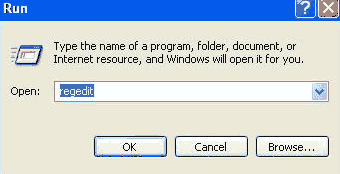
  • Click Start button and type regedit in Run option then press Enter for next.
  • Here locate the location to:
Ă‚· HKEY_CURRENT_USER\Software\Microsoft\Windows\CurrentVersion \Policies\Explorer

Ă‚· Here in right side panel, right click to create a new DWORD value
with name NoDrives (it is case sensitive), then assign number
to its value data box.

Ă‚· Now if you want to hide all system drives then modify value data
to 3FFFFFF .

Ă‚· For specific drive use values (For example, for A, B, C, D, E, F, G,
H drives, the values are 1, 2, 4, 8, 16, 32, 64, and 128 respectively).
Ă‚· In this case we are trying to hide F drive, so we modify the value data
box to 32.

Ă‚· Now close the registry editor and restart your computer after any
changes to go into effect.
Ă‚· But next time, if you want to unhide this drive then simply change
the value data box or delete the DWORD item.
  • Again close the registry editor and restart your computer after any
changes to go into effect.
Tagged under: ,

Encryption Software Protect your USB Stick-Rohos Mini Drive


1 Comments » Those who has Megabytes of sensitive files on the USB drive and seriously concerned with data security cannot imagine their USB stick without the hidden volume that is created using this tool.
Rohos Mini Drive creates hidden and encrypted partition on the USB flash drive memory or on your computer. You work with the files on the hidden partition without opening a special program. Those who have megabytes of sensitive files on the USB drive and seriously concerned with a data security, cannot imagine their USB stick without the hidden volume that is created using this tool.
rohos
Main Features:
» Creates a virtual encrypted partition volume (disk) within a USB flash drive free space.
» Automatically detects your USB stick config and creates encrypted partition.
» Program does not require installation to work with encrypted partition on a guest computer. You can start it right from USB drive.
» Encrypted partition is protected by password.
» Encryption is automatic and on-the-fly.
» Encryption algorithm: AES 256 bit key length. NIST approved.
» Rohos Disk Browser to open encrypted partition without having Admin rights
encrypted Disk-on notifications helps you to know when this volume is visible or disabled. If you click on the balloon the Explorer window will be opened on the disk.
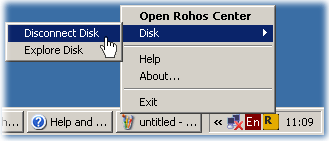
If you need to open secured volume on a guest computer, you just click Rohos icon on the USB flash drive root folder and enter disk password. Rohos will start a volume and will sit near the system clock to close the disk when you’ll finish.
disconnect
Despite the name “Mini” the program provides a decent USB flash drive password protection, has all necessary functions and wonderful user interface.
download
SysReq:Windows 2000/XP/2003/Vista/ USB 1.1/2.0 port /USB flash drive
Tagged under: ,

Unlocking Administrator Account In Windows Vista


Deep inside Windows, there’s a secret Administrator account, and it’s different from the normal administrator account you most likely have set up on your PC.On Vista, the difference is more than the name: the Administrator account is not subject to User Account Control. So the Administrator can make any changes to the system and will see no UAC prompts.
For this reason, you may want to unlock the Administrator account, and use it only for those times when you want to make a series of system changes and don’t want to be bothered by UAC. True, you could instead simply disable UAC on your system, but it’s a pain to do this, and you may forget to turn it back on.
Turning on the Administrator account is straightforward.
You can unhide or turn on the Administrator account using the steps below:
  1. Type cmd in the Search field on the Start menu. Right click the command prompt icon at the top of the Start menu and click Run as administrator.
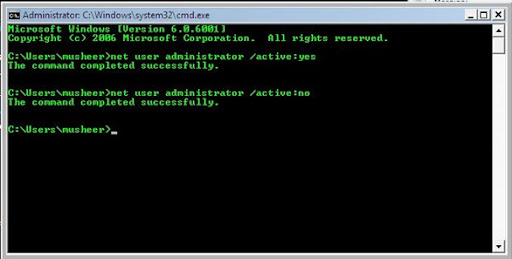
  2. Type ‘Net user administrator /active:yes’.
pic
Once you complete these steps, the Administrator account will appear on the Welcome screen. To disable once again hide the account, repeat step 1 described above and type ‘Net user administrator /active:no’.
Tagged under:

Secure Your Laptop With Laptop Alarm


Did you ever hesitate to leave your laptop for a few minutes in a public space like a library? No need for that with Laptop Alarm. Laptop Alarm will emit a loud alarm whenever someone tries to steal your laptop.

  • Protects using proven technologies when your power cable or external peripherals are disconnected or when the mouse is moved
  • Compatible with all Windows  versions
  • It's just 200 kb!

Laptop Alarm is the recommended solution for anyone with a laptop on the road or in public places.

OS: Windows 98/Me/NT/2000/XP |Freeware

Saturday, 3 March 2012

Tagged under: ,

Password Protect Windows Programs With Empathy


Many of us share our PC with other users ,but we may not to allow them to run all the programs which we use.Sometimes you want protected files stay protected when  you copy them to another location or even to another computer.  Here is a small, simple, easy-to-use but smart and reliable utility allowing you to password-protect any executable file called Empathy.It lets you protect any of your windows program like Firefox, Internet Explorer or any other program installed on your computer.

Empathy allows you to protect potentially dangerous programs against running by an unauthorized person. You can use it to protect executable files in public places like schools, internet coffees or even homes.Empathy can modify an EXE file so that it will require a password to run. Only a person knowing the password will be allowed to run the protected program.

Empathy lets you use a single character as password to protect executables .It is a postcardware as you will need to send a picture post card to the program author writing any thing to get the full version and then you can have password with more than one character(not an electronic/e-mail postcard - you can send something with a picture of your city on it, or anything you like). 
Empathy is portable program which you can place any where on your hard disk or pen drive ,it does not require any installation.
Empathy 2.1
Sys Req:Windows NT3.51,NT 4, 2000, XP,Server 2003, Vista, 95, 98 ,Me|Freeware|180KB
Tagged under: ,

Free Password Protect Files Program For Windows


One of the most important feature which almost every windows user wants in windows is to protect the private files with password. Many people keep some of the very sensitive files on their hard drive and other portable drives which they don’t want other to see.
Androsa  is a free password file protector to protect your confidential documents or any other file with a secret password. It lets you lock any file in windows with a secret password.

When ever you password protect any files with this program it will convert the file into an encrypted file which can be opened only with software and de-protected by entering the correct password. You can select among different encryptions method at the time of password protecting your files with this program.
Let’s see how simple you can password protect any program with this software.
This free password protect program get integrated with the context menu’s in windows so you can encrypt any file just by right clicking on that file.
1. Right click on the file which you want to password protect, select Androsa FileProtector System.


2. Now select the encryption algorithm you want to use and enter the password and click Protect.

3. That’s it your file is password protect now. :)
This free password protect program also lets you password protect files on your portable USB drive, you can download the portable version of this program from here
Free password protect Androsa FileProtector is a free to use program which does not contain nay adware, spyware or malware etc.
Download Androsa FileProtector
Tagged under: , ,

Prevent Unauthorized use of USB Ports

If proper steps are not taken to secure your computing environment, a USB flash drive would be an ideal means of collecting valuable information and literally pocketing it. So what steps can be taken to secure your environment against these potentially sinister little devices?
The freeware NetWrix USB Blocker enforces centralized access control to prevent unauthorized use of removable media that connects to computer USB ports, for example, memory sticks, removable hard disks, iPods, and more. USB port access control is a very  important aspect of your endpoint security, no matter how good your antivirus and firewall are. The USB device lockdown protects your network against malware and prevents theft of sensitive corporate data.
Unlike other solutions, it requires no deployment of agents on client computers. Another advantage of the tool is simplicity, only a couple of mouse clicks to get the work done. And the most exciting: the software is completely free of charge.

Benefits: 1) Prevents unauthorized use of removable devices.
2) Hardens endpoint security.
3) Enables regulatory compliance, such as SOX, GLBA and HIPAA.
4) Freeware! Saves your IT buck for other important projects.
Features:
1) Seamlessly integrates with Active Directory.
2) Requires no client deployment (no agents).
3) Fully centralized management.
4) Very simple to use, no monster tools and long learning curves
 NetWrix USB Blocker | Freeware | 795 KB
Tagged under: ,

PDF Owner Guard Personal Edition

When you want to send a sensitive document via e-mail or make it available to many people, you have to consider what restrictions, if any, to apply to it so it can't be misused. PDF OwnerGuard is a reliable digital rights manager and data protection system.

Features
  • The protection system lock your PDF documents to specific machines
  • Control and apply limitations for viewers using a unique DRM component called License Manager. This minimizes viewers' DRM hassles by letting them access your DRM protected files offline.
  • The encryption and protection method is based on an advanced 256-bit AES encryption system.
  • These protected files are just like normal files, and users do not need to run any additional application to access them or to have
  • You can place on your files include working time, expiry date, and print and save functions.
  • Users can lock the files to specific computers, and encrypt and protect new output files too.
  • Use of the clipboard, screen capture, dragging & dropping, and write  can be restricted and create permissions.
  • A license code can be generated by the user and copied to the clipboard by pressing a button, and you can share it with your intended recipients separately.

When compared to the security and encryption features provided by Adobe’s DRM method, OwnerGuard gives more for the buck. Apart from access limitations, license expiration and machine dependency support, it also provides support for encrypting newly created files. Creating a protected file grouped by projects is easy with a wizard that guides you through all the steps.
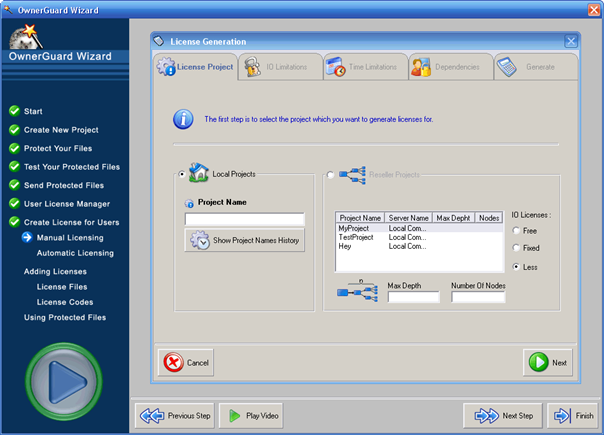
Once you have created a project, associate a license with it by placing limitations on any PDF files produced under that project, then add files, and finally click the ‘Protect Selected Files’ button. The License Manager lets you view, access and distribute your custom computer ID.
SysReq:WINDOWS XP/2000/98|Freeware
PDFOwnerguardPersonal
Tagged under: ,

A Free Security Software to Hide Folders

Windows have a folder lock security feature, but this integrated function has a lot of shortcomings, it is hardly usable on network because sys admin can easily view the content of the locked folders, anyone who has an access/login on your computer can open locked folders, it doesn't support FAT32 and it doesn't work on Home edition of Windows. Furthermore, locking folders means that all users that has access to your computers can still see those folders.
Hide Folders, on the other hand is not meant to lock the folders with predefined password, it is meant to simply HIDE them, so no one can even know of their existence. It is simply more efficient not letting anyone know that you even have some confidential folders. Secondly, you can password protect the application so no one can open Hide Folders to unhide your hidden folders. Remove the Hide Folders from the programs menu and 99% of people wouldn't even know that you have a folder hiding program installed on your system.So by  using this application hided folders can not be accessed, viewed, searched or deleted .

Hide Folders Features
  • Securely hide folders with your confidential data
  • Works on Windows XP and Windows Vista, supports NTFS, FAT32 and FAT file system.
  • Password protection - folders can be unhid only after entering a password within the program.
  • Hidden folders can not be uncovered by deinstalling the program.
  • Unlimited number of folders can be hidden.
  • Folders are hidden even in Windows safe mode.
  • Fast and user-friendly skinned user interface.
  • Intuitive for usage, no learning curve.
  • Sys Req :Windows XP, Vista, 2003|Freeware |1.43MB
    HideFolders
  • Tagged under: , , ,

    Fix Windows Update In Windows With WUfacility


    WUfacility is a Windows Update used to repair small tools, it can solve many common problem of Windows Automatic Updates. The software cleans Windows temporary files, clean Windows Update temporary files  and registers the DLLs of the Windows Update.

    Features
  • Windows temporary folder clean-up
  • Stop Windows Automatic Update Service
  • Clean-up folder Windows Automatic Updates
  • Windows Automatic Updates the registration of the DLL files related to
  • Restart the Windows Automatic Updates service The software is easy to use and shows the steps that were executed successfully or not.
    SysReq: Windows7,Vista,XP |  Freeware | Microsoft. Net Framework 2.0 |12KB
     Wufacility or From Softpedia  | InsideCore
  • Tagged under: ,

    Protect Your PC Using Windows Steady State


    If you’ve used a PC at a library or internet cafĂ©, you’ve probably discovered that it’s been ‘locked down’. In all likelihood,Windows will have barred you from installing new programs, launching the Run dialogue and fiddling about in Control Panel. It’s understandable, of course – no administrator wants to deal with a Windows installation trashed beyond redemption by a vandal or inexperienced user.
    Many shared, public PCs are configured using Microsoft’s Steady State . This provides administrators with an easy method of implementing user restrictions. It’s suited not only to commercial and institutional environments, but is also perfect for the home. If you’re setting up a PC for a child, for instance, Steady State will give you almost total control over what they can and can’t do.

    There are  2 settings available there,Global Computer Settings and User Settings. Most of the action will take place in the latter.
    Features
    • Set Computer Restrictions (Computer Restrictions).
    • Schedule Software Updates. (Allows you to specify whether SteadyState automatically applies Windows Updates. This is recommended, since it handles dealing with Windows Disk Protection for you, and also updates the signatures of several popular Antivirus programs.)
    • Protect the Hard Disk (Windows Disk Protection).
    • Add User (User Account Manager).
    • And  Microsoft gives it away for free!

    By using Windows SteadyState, you can more effectively: Defend shared computers from unauthorized changes to their hard disks; Restrict users from accessing system settings and data; Enhance the user experience on shared computers.With Windows SteadyState, Windows administrator can minimize the windows corrupting rate and protect their windows shared computer in better management.
    Windows SteadyState 2.5
    Tagged under: ,

    How to Start a Specific Program as an Administrator


    Due to security reasons, working with a user account with restricted rights is advisable. However  sometimes  it is essential to carry out some tasks as an administrator.You can  have high rights by using the command “runas”  or with the context  command “runas” in XP or “runas administrator” in Vista.
    For that ,open the “Run” command in XP in the start menu and type  in the next “runas” dialog followed by the required parameters .What is decisive here is the specification of the desired user.For that use the option “/user:” and followed by the user name in the format “Domains\users”.
    As long as if it is a standalone PC (without a domain connection) specifying the details of the respective user account is sufficient .Finally enter the name of desired program with complete path, like this
    Runas /user:Administrator cmd.exe


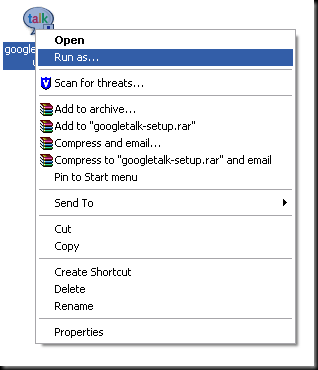
    Then enter the password in the command prompt.Alternatively ,right click on an executable file in Windows Explorer.You can start the context command “Runas” in XP and “Runas administrator” in Vista.


    Tagged under: ,

    Block Programs in Vista


    If you have multiple users working on your computer ,using different  accounts ,then your PC is sure to be at risk.There are wide range of applications available in net, which can be downloaded and installed .To overcome this problem, you can use the parental control feature in Windows Vista.This can block the installation and access of such applications  on different user accounts.
    To use this utility do the following.
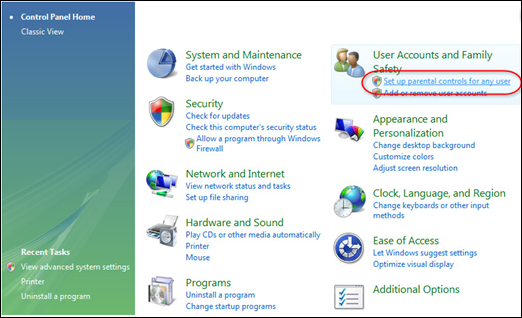
    • Start>Control Panel.Click the ‘Setup Parental Controls for any User “link
    • Select a user account on the resulting screen
    • Click the ‘On,enforce current settings’ radio button.
    • Click the ‘Allow and block specific programs ‘ link
    • Select the ‘This account can only use the programs I allow’ radio button .A list of applications will now be displayed.
    • Select the applications that need to blocked  and click “OK”
    • If the program is not mentioned in the list,click “Browse’” and select the required program.
    • Once the program has appeared in the list ,select it and click “OK”

    Tagged under: , ,

    3 Ways to Enable the Built-In Windows 7 Administrator Account


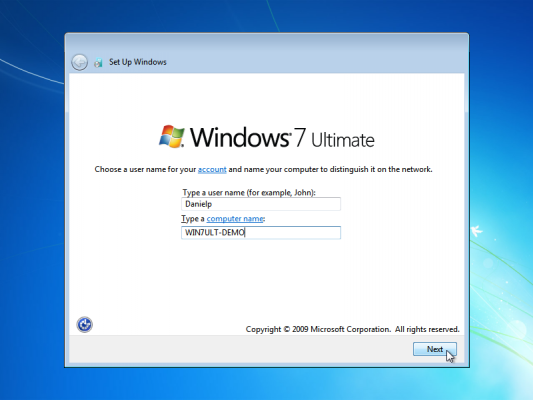
    In Windows 7, like Windows Vista, when you install the operating system, you are asked to enter a user name which will be the primary local user that will use this system.
    Like in Windows Vista, in Windows 7 the built-in Administrator's account is disabled by default. Furthermore, this account is not associated with any password.
    The new user which is created during the installation is configured to be a member of the built-in Administrators group, and in fact, can be used for any management task. That use is in fact equivalent by all means with the original built-in Administrator account.
    However, there may be situations where one would like to use the built-in Administrator account instead of that "new" user. One of these might be when you're building a system for cloning purposes, and would like all cloned machines to be able to use the built-in Administrator's account.
    Note that since that account does NOT have a password, enabling it without properly setting a password for that account will open a serious security opening on your system!
    There are basically 2 easy methods of enabling the built-in Administrator's account and 1 advanced method.

    Method #1 - Using the Local Users and Groups Snap-in

    To enable the built-in Administrator's account by using the Local Users and Groups snap-in please follow these steps:
    Open Local Users and Groups. You can do so by typing lusrmgr.msc in the Start search box or in the Run command and pressing ENTER. Or, you could open Computer Management by right-clicking Computer in the Start menu and selecting Manage.

    Expand System Tools > Local  Users and Groups > Users.
    Right-click the Administrator account and select "Set Password".

    In the"Set Password for Administrator" click "Proceed".

    In the"Set Password for Administrator" enter the Administrator's desired password twice, and click "Ok".


    Next, enable the Administrator's account. Right-click the Administrator's account and select "Properties".

    Un-chek the "Account is disabled" check-box. Click on the "Ok" button.

    Administrator's account is now enabled and configured with a password.

    Method #2 - From the Command Prompt

    To enable the built-in Administrator's account by using the Command Prompt  please follow these steps:
    1. Click Start and type CMD, then press Enter. It is best to run the Command Prompt as an Administrator. To do so, right-click CMD and select "Run as Administrator".

    When prompted to allow the Command Processor to run, click on "Yes".

    BTW, you can also hover over the CMD line and press CTRL + SHIFT + ENTER to invoke the "Run as Administrator" shortcut.
    In the Command Prompt window, type:
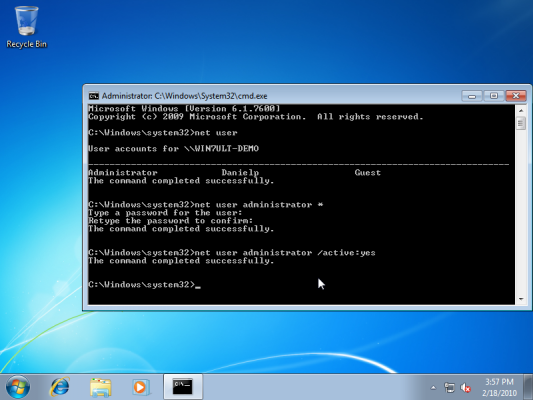
    net user
    Note how the Administrator account is there, yet the new user account has not been yet created.
    To set the Administrator's account password:
    net user *
    Then enter the required password and confirm it.
    To enable the Administrator's account:
    net user administrator /active:yes

    Method #3 (Advanced Users) - During the Installation Process

    There is a 3rd method which advanced users can use. This method can be used during the installation process itself.
    During the installation, after being prompted to configure the new user account, you will be able to set the new account's password.


    At that phase, press SHIFT and F10 keys together. A Command Prompt window will appear.

    In the Command Prompt window, type:
    net user
    Note how the Administrator account is there, yet the new user account has not been yet created.
    To set the Administrator's account password:
    net user *
    Then enter the required password and confirm it.
    To enable the Administrator's accoun:
    net user administrator /active:yes

    Close the Command Prompt window and continue with the installation process.
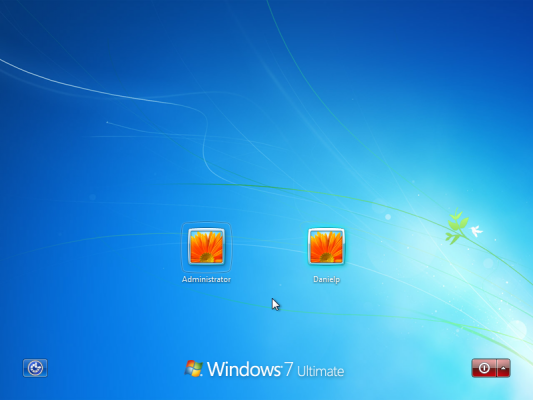
    If you log off you will now see the Administrator's account as a valid logon option.