300x250 AD TOP

Showing posts with label Microsoft Word. Show all posts

Saturday, 17 March 2012

Tagged under:

New Microsoft software can translate voices into foreign languages


Researchers at Microsoft have made software that can learn the sound of your voice, and then use it to speak a language that you don't. The system could be used to make language tutoring software more personal, or to make tools for travelers.
In a demonstration at Microsoft's Redmond, Washington, campus on Tuesday, Microsoft research scientist Frank Soong showed how his software could read out text in Spanish using the voice of his boss, Rick Rashid, who leads Microsoft's research efforts. In a second demonstration, Soong used his software to grant Craig Mundie, Microsoft's chief research and strategy officer, the ability to speak Mandarin.
Hear Rick Rashid's voice in his native language and then translated into several other languages:
In English, a synthetic version of Mundie's voice welcomed the audience to an open day held by Microsoft Research, concluding, "With the help of this system, now I can speak Mandarin." The phrase was repeated in Mandarin Chinese, in what was still recognizably Mundie's voice.
"We will be able to do quite a few scenario applications," said Soong, who created the system with colleagues at Microsoft Research Asia, the company's second-largest research lab, in Beijing, China.
"For a monolingual speaker traveling in a foreign country, we'll do speech recognition followed by translation, followed by the final text to speech output [in] a different language, but still in his own voice," said Soong.
The new technique could also be used to help students learn a language, said Soong. Providing sample foreign phrases in a person's own voice could be encouraging, or easier to imitate. Soong also showed how his new system could improve a navigational directions phone app, allowing a stock synthetic English voice to seamlessly read out text written on Chinese road signs as it relayed instructions for a route in Beijing.
The system needs around an hour of training to develop a model able to read out any text in a person's own voice. That model is converted into one able to read out text in another language by comparing it with a stock text-to-speech model for the target language. Individual sounds used by the first model to build up words using a person's voice in his or her own language are carefully tweaked to give the new text-to-speech model a full ability to sound out phrases in the second language.
Soong says that this approach can convert between any pair of 26 languages, including Mandarin Chinese, Spanish, and Italian.
Preserving a person's voice when synthesizing speech for them in another language would likely be reassuring to a user, and could make interactions reliant on translation software more meaningful, says Shrikanth Narayanan, a professor at the University of Southern California, in Los Angeles, leads a research group working on systems to translate speech in situations such as doctor-patient consultations.
"The word is just one part of what a person is saying," he says, and to truly convey all the information in a person's speech, translation systems will need to be able to preserve voices and much more. "Preserving voice, preserving intonation, those things matter, and this project clearly knows that," says Narayanan. "Our systems need to capture the expression a person is trying to convey, who they are, and how they're saying it."
His research group is investigating how features such as emphasis, intonation, and the way people use pauses or hesitation affects the effectiveness and perceived quality of a word-for-word translation. "We're asking if you can build systems that can mediate between people as well as just replacing the words," he says. "I view this [Microsoft research] as a part of how you make this happen."
Friday, 2 March 2012

Tagged under:

How to Use Document Inspector in Word 2007

The Document Inspector in Microsoft Word 2007  provides a central location for you to examine documents  for personal, hidden, or sensitive information. You can  use built-in Document Inspector modules to remove unwanted information more easily. Utilizing the Inspector tool is one way of safeguarding any information you want to remain private.
In documents, personal information is any information that identifies or can be used to identify, contact, or locate the person to whom such information pertains.This includes
  • Your name and initials
  • Your company or organization name
  • The name of your computer
  • The name of the network server or hard disk drive where you saved the document
  • Other file properties and summary information
  • Non-visible portions of embedded OLE objects
  • The names of previous document authors
  • Document revisions
  • Document versions
  • Template information
  • Hidden text
  • Tracked changes and comments
    How to use it?
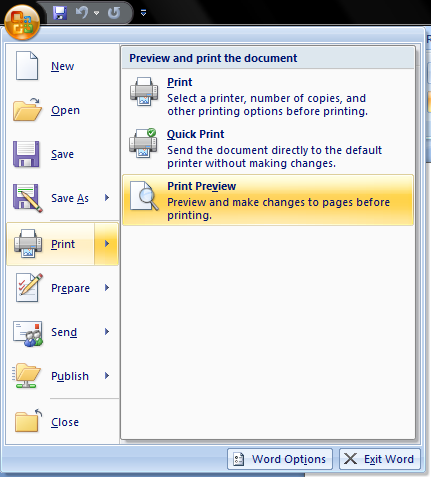
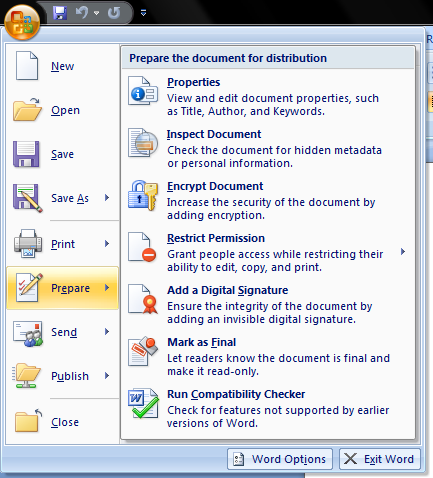
    1.Click the Microsoft Office Button and point to Prepare
    image
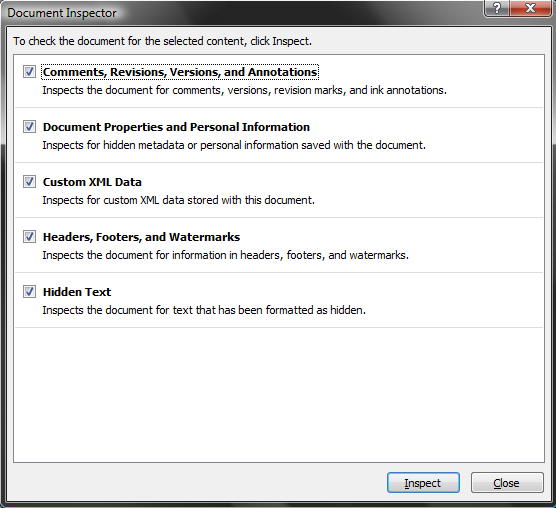
    2.Click Inspect Document. The Document Inspector dialog box is displayed.When launching the inspector, if you haven't saved your file before making the most recent changes, you will be prompted to do so. It's not required that you save; however, the reason we provide this dialogue is because once you run the inspector, and choose to remove certain components of a document, they are GONE.
    image
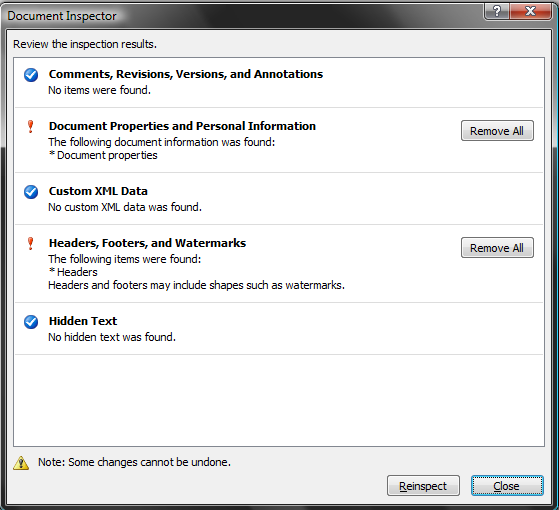
    3.Select the modules corresponding to the types of content you want to search for, and then click Inspect.After the inspection is finished, the Document Inspector dialog box shows which modules found content in the document. It also provides buttons to remove that content.
    image
    The Inspect button also changes to Reinspect. If you click the Reinspect button at this point, the Document Inspector screen is re-displayed, enabling you to choose additional modules for inspection.
    4.To select other modules for inspection, click Reinspect. Otherwise, click Close.
  • Tagged under:

    How to Shrink Document by One Page in Word 2007

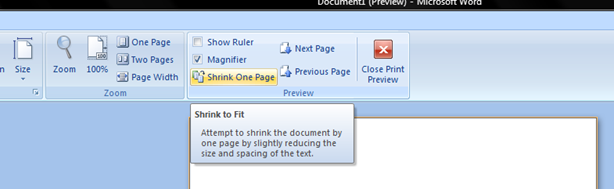
    A document whose last page is mostly blank is a waste of printer paper, especially if you have to make a lot of copies. Your letters and mailings will also look mere professional if they fill the pages nicely. If Print Preview reveals a skimpy last page.  Shrink One Page button in Word will tweak the fonts lathe document to make it a page smaller. Don't like the results? Just press Ctrl-Z to Undo.
  • Display your document in Print Preview (by either clicking on the Print Preview button on the toolbar or choosing the File, Print Preview command) image
  • Click on the Shrink to Fit button on the toolbar of the Preview window image
  • Click on the Close button to exit preview and return to your previous view Word will automatically reduce the font size of the document (maintaining the relative font sizes).
  • Tagged under:

    Insert Tables in Word 2007 with out touching mouse

    Here is trick to create columns in MS Word with out touching the mouse.
    Just type +------------------+------------------------+----------+----------------+ and PRESS ENTER.

    Word will automatically insert a table.

    To add a new row just hit tab again when you are in the last column to the right. You can add as many rows to your table (box) as you want using this method. The + symbol indicates a column break, and the --- symbols indicate the width of the column you want the table (or box) to be.
    Tagged under: , , ,

    Keep your office documents online with Google Docs and OfficSync

    Bringing the power of Google to Microsoft office. Offisync allows you to use, update and synchronize your Google Docs onto Microsoft Office – as well as offering the ability to search on Google from the Office interface and insert images into your Office documents from Google Images.

    Requirement


    You first have to install OfficeSync which sits in your Office documents.  
    To open a document from Google Docs, just press the small yellow folder icon on the far left and a box will appear asking you to enter your Google account name and password.   I was initially a bit concerned about entering my Google account password so I emailed OffiSync and asked them if they store the account details on their servers. 
    User Names and Passwords are stored in the Windows Credentials Manager (CredMan) service on your computer. OffiSync does not store any credentials on our servers or on the Google servers.

    SAVE

    • Save your documents online in Google Docs and access them from any computer.
    • Access your files from any computer with or without Microsoft Office.
    • Manage, create and delete Google docs folders right from within Office applications.
    • Add collaborators as you save your file in Google Docs.

    Open

    • Open any Google Docs file directly from Microsoft Office applications.
    • Move or copy files between Google Docs folders.
    • Manage your Google Docs file library just as if it was on your own computer.

    Collaborate

    • Add collaborators to your documents and manage their permissions.
    • Changes made through Office apply instantly to your Google Docs version of each file.

    Search

    • Find any document based on its content using the powerful integrated Google search feature.
    • Switch between multiple accounts (Google Docs and Google Apps) to find your business and personal files in seconds.

    Email

    • Communicate with your collaborators right from within your shared document.
    • Send automated notifications to your friends and co-workers to streamline the collaboration process.