
Learn
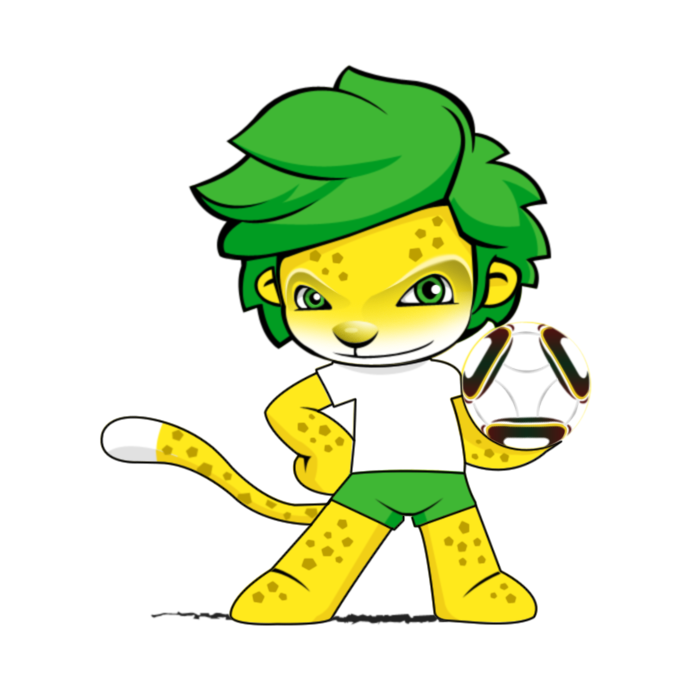
step by step how to draw this lion mascot in Photoshop. This tutorial
will cover the basics such as using the Pen and selection tools to
create the outline, painting, and shading.
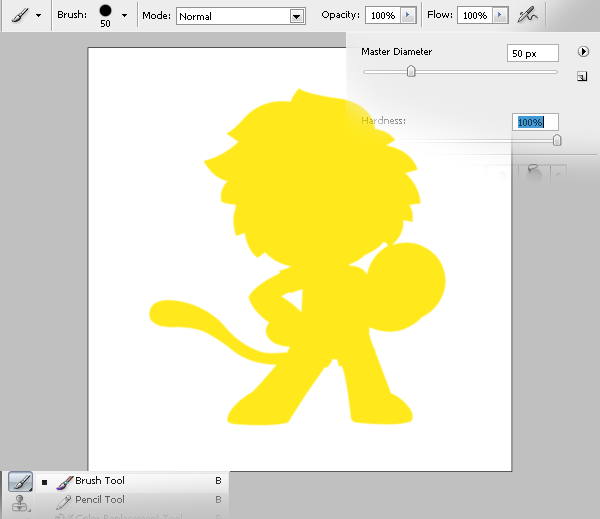
 Make the selection and fill it in with yellow (#ffe91c).
 Make the selection and fill it in with white (#ffffff).
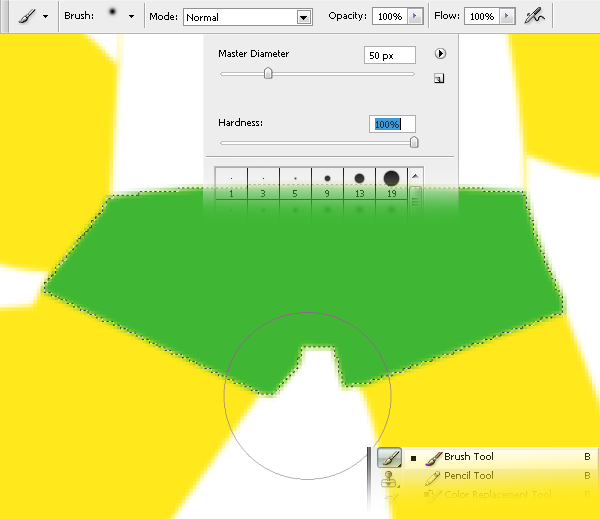
 Fill the shape using the brush tool and set it to a green colour (#3fb734).
 Fill it with green (#3fb734).
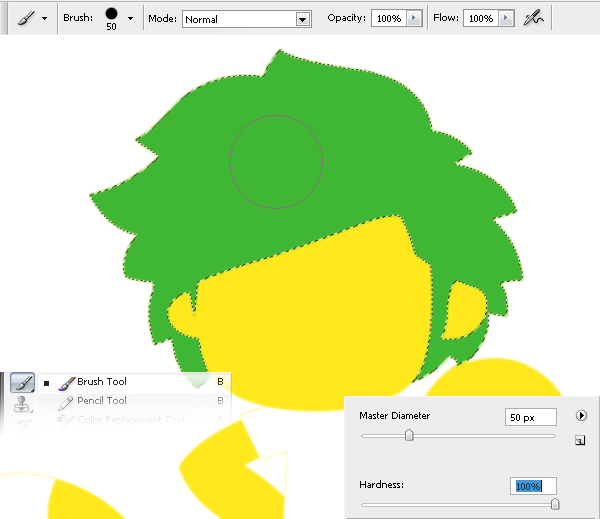
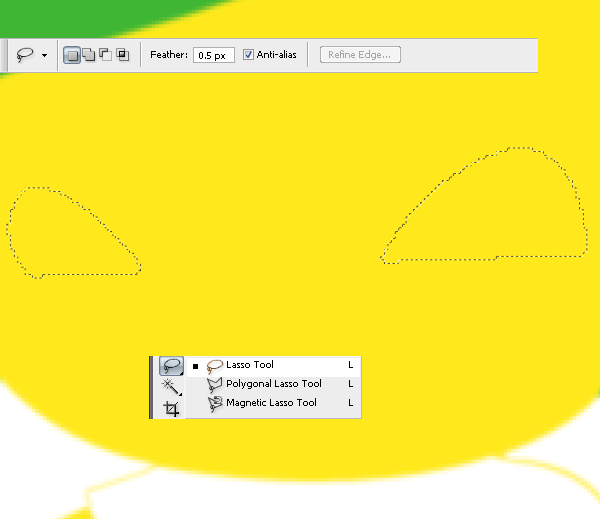 Fill the shape with white (#ffffff) with the brush tool (b).
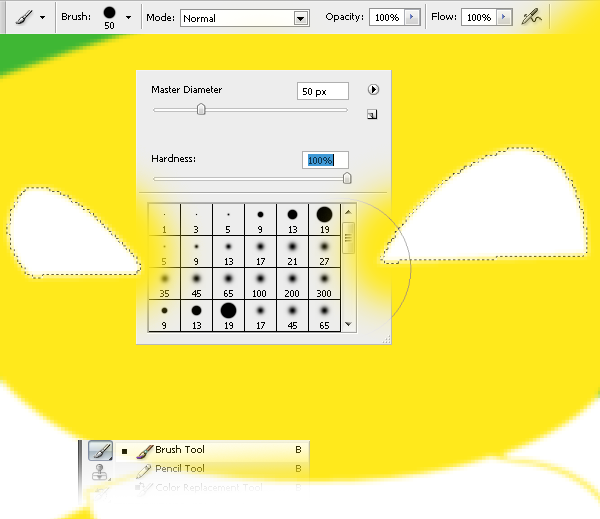
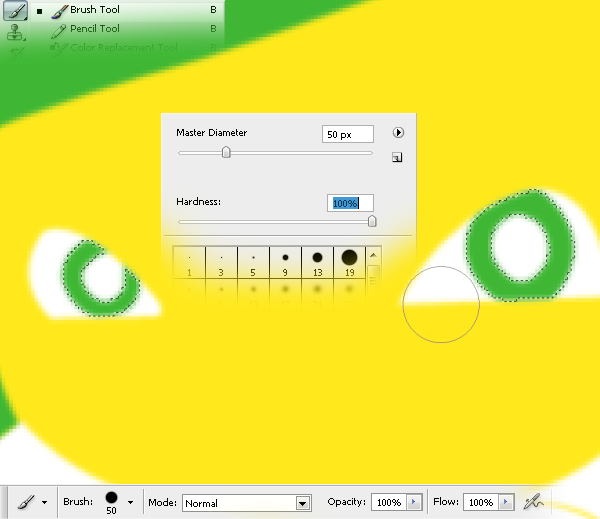
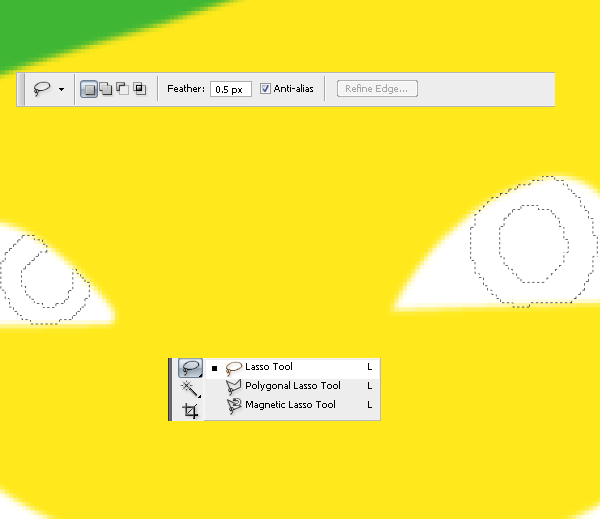 Fill it with green (#3fb734).
 Use the brush tool (B) set to black (#f0db00) with opacity set to 20%.
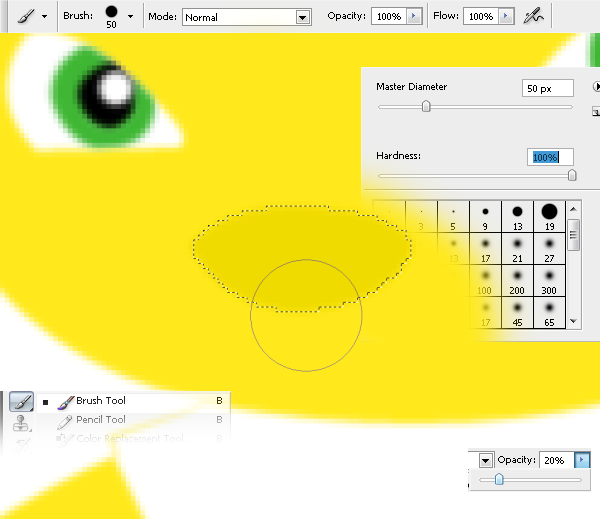
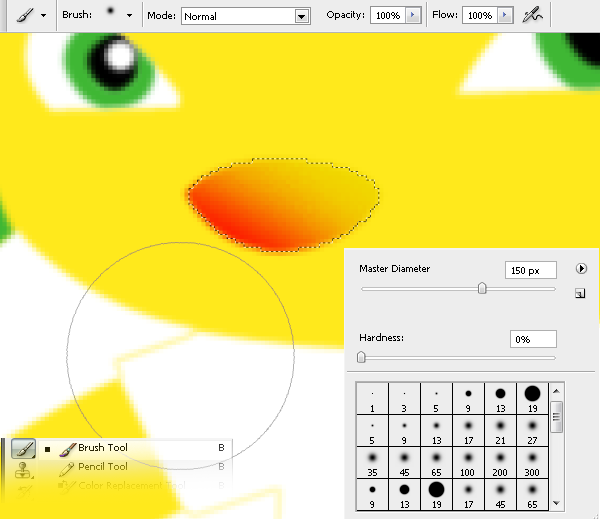 Set the opacity to 20% and the result should look like this:
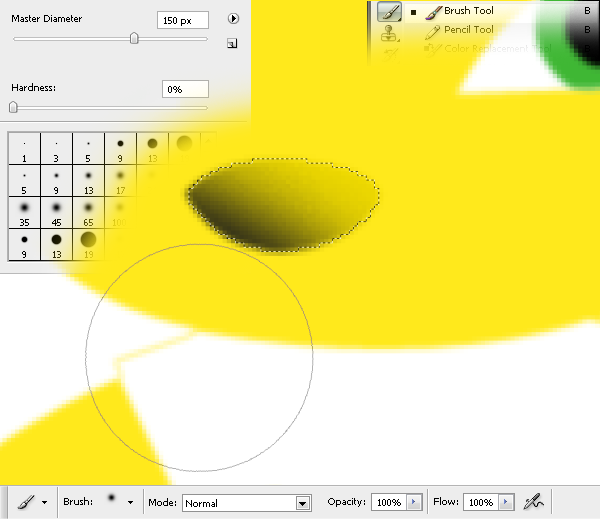
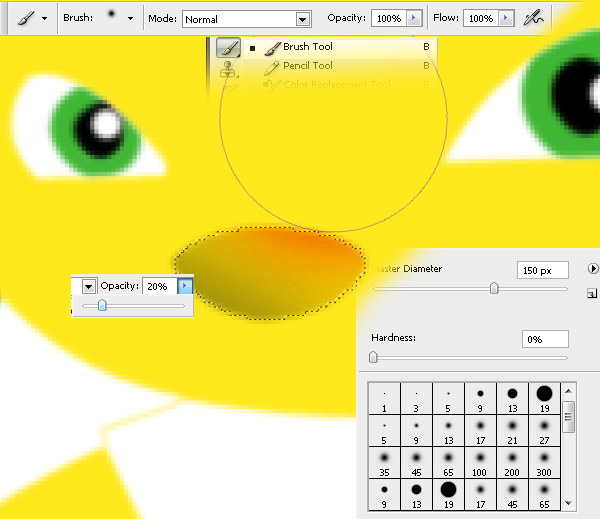 The result should look like this:
Preview of Final Results
Lion Mascot Photoshop Tutorial
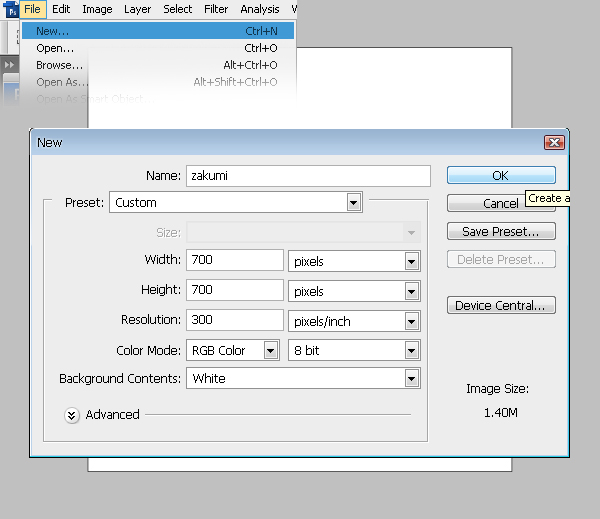
Step 1
Create a new document. This one is 700x700 in size and 300 dpi resolution.Step 2
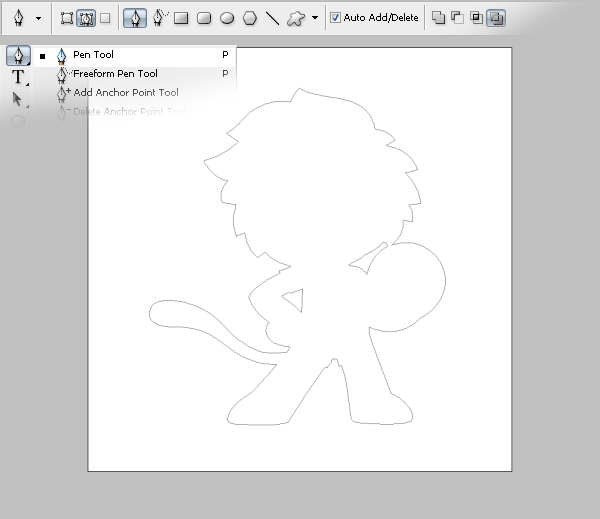
Create a new layer (Ctrl+Shift+N) and name it “body”. Make the contour of the mascot using the pen tool.Step 3
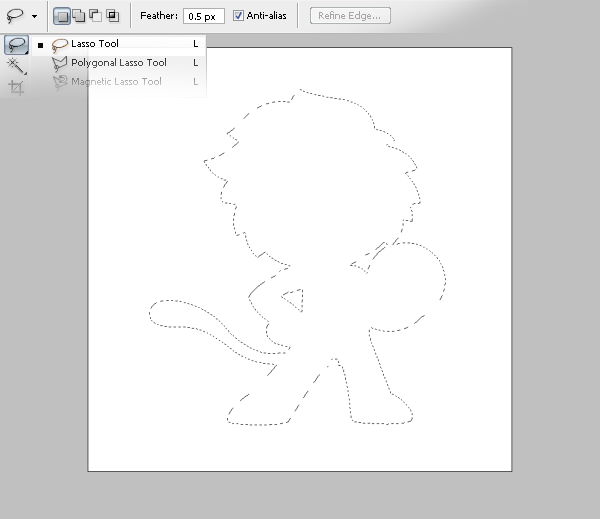
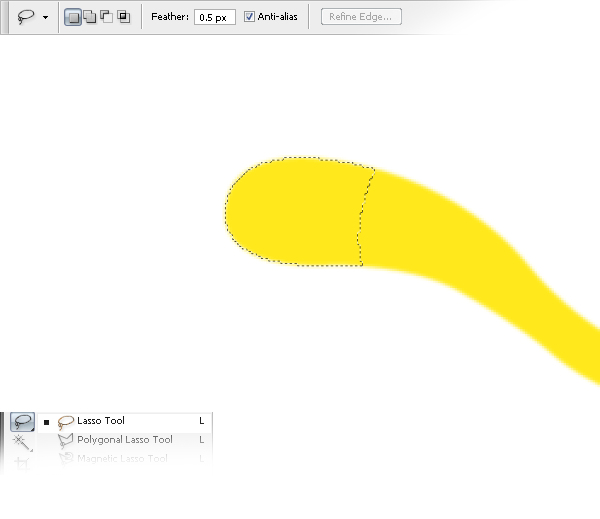
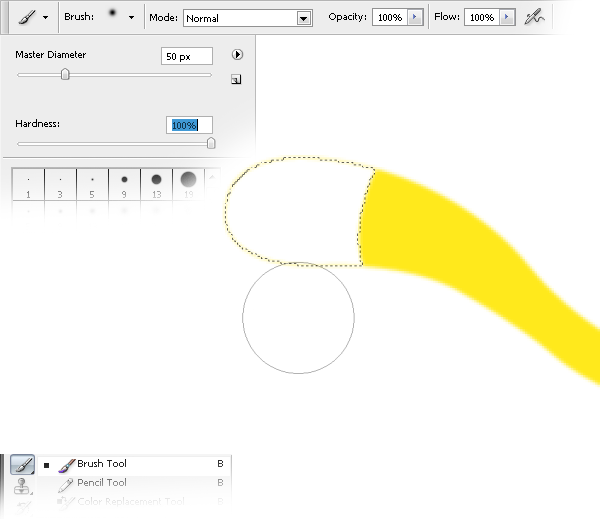
Create a new layer (Ctrl+Shift+N) and name it “tail tip”. Move it over the “body” layer. Using the lasso tool make a zone on the tail tip and fill it in with white (#ffffff).Step 4
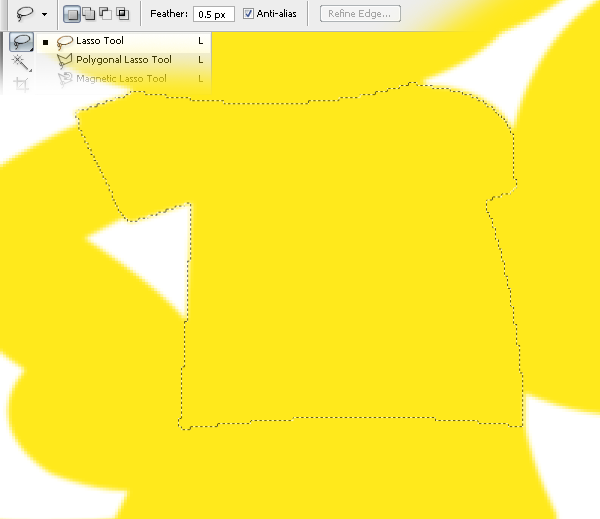
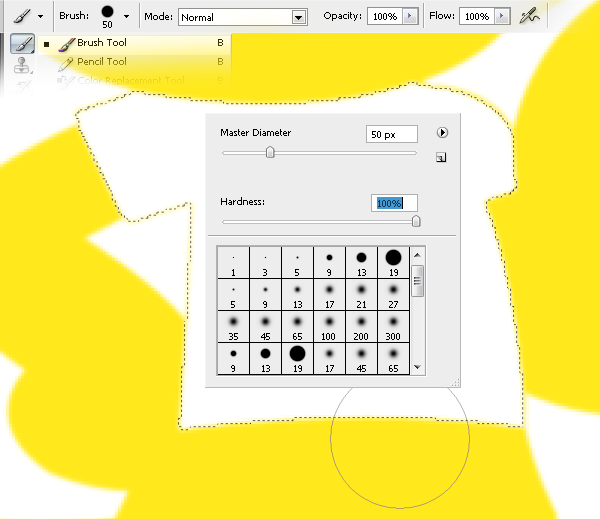
Now create the T-shirt. Create a new layer (Ctrl+Shift+N) and name it “T-shirt”. Move it over the “tail tip” layer. Using the lasso tool, make a form like a T-shirt.Step 5
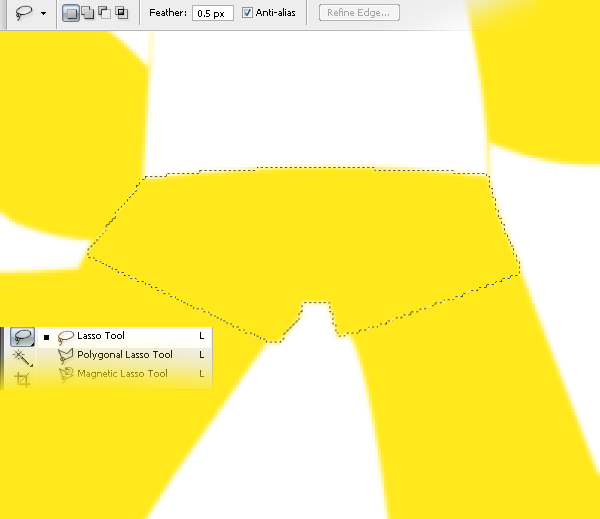
Create the pants. Create a new layer (Ctrl+Shift+N) and name it “pants”. Move it over the “T-shirt” layer. Using the lasso tool, create the paths form.Step 6
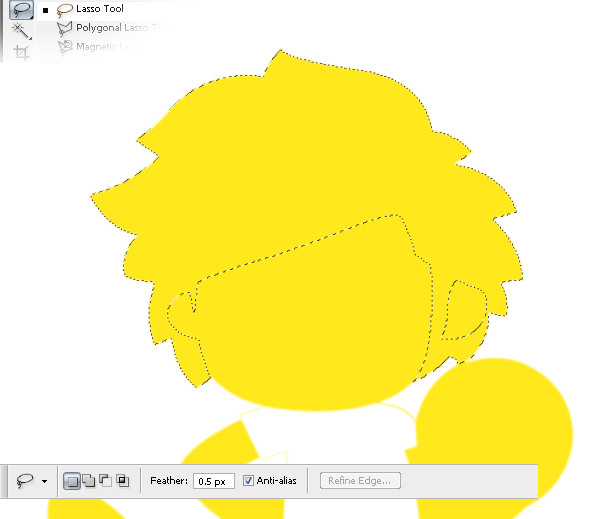
Make the hair. Create a new layer (Ctrl+Shift+N) named “hair”. Move it over the “pants” layer. Use the pen tool to make the shape of the hair.Step 7
Create a new layer (Ctrl+Shift+N) named “eyes backgound” and move it over the “hair” layer. Make the shape of the eyesStep 8
Create a new layer (Ctrl+Shift+N) named “eye green zone” and move it over the “eyes background” layer. Make the shape of the colored part of the eye.Step 9
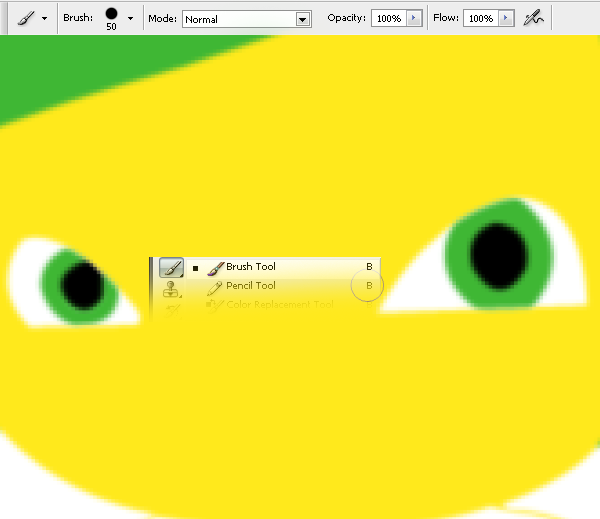
Create a new layer (Ctrl+Shift+N) named ”eye black zone” and move it under the “eyes background” layer. Fill the center part of the eye with black (#000000).Step 10
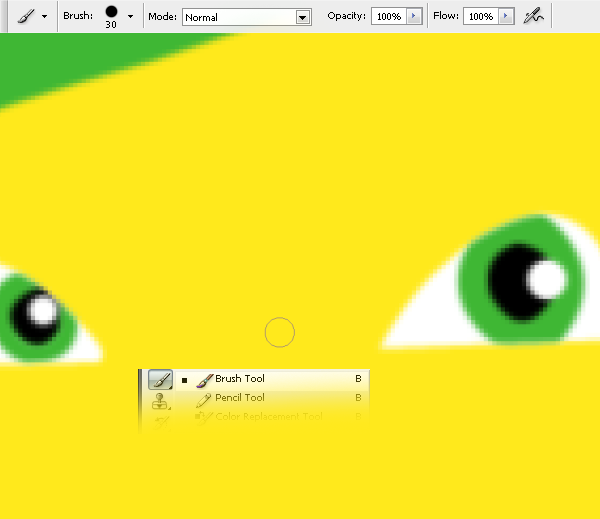
Make a new layer (Ctrl+Shift+N) named “eyes reflection” and move it over the “eyes green zone”. Using the brush tool (b) with hardness set to 100%, make two white (#ffffff) dots like in the picture.Step 11
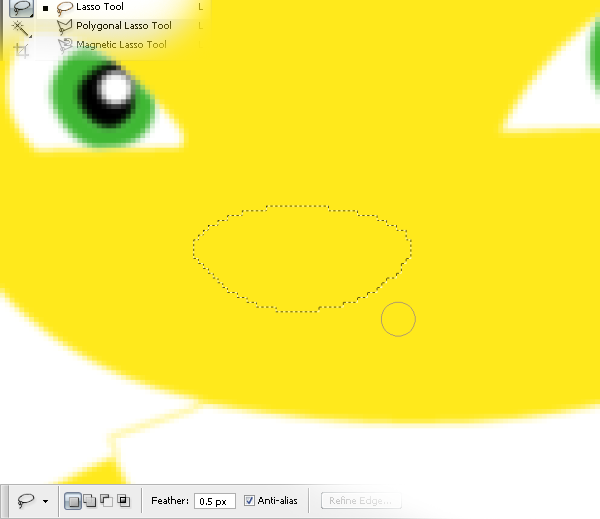
Create a new layer (Ctrl+Shift+N) named “nose” and move it move it over the “eyes reflection” layer. Make the selection for the nose by using lasso tool (P).Step 12
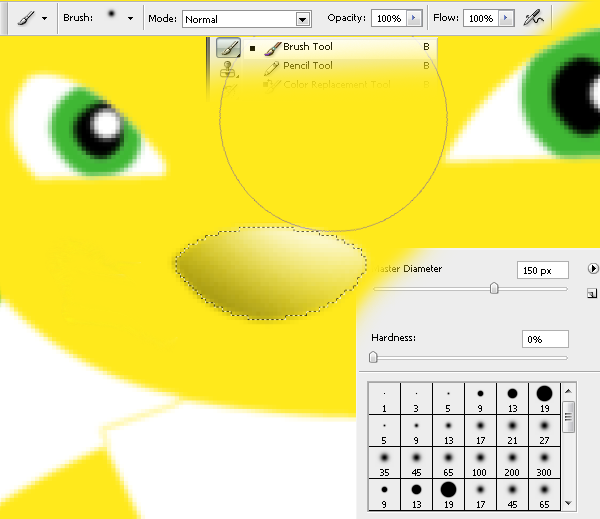
Load the selection you made in Step 11 and create a new layer (Ctrl+Shift+N) named “nose shadow” and move it over the “nose” layer. Brush the left side with black (#000000) as shown below.Step 13
With the same selection, create a new layer (Ctrl+Shift+N) named “nose reflection” and move it over the “nose shadow” layer. Brush the upper right side with white (#ffffff).


0 comments:
Post a Comment